My Calendar
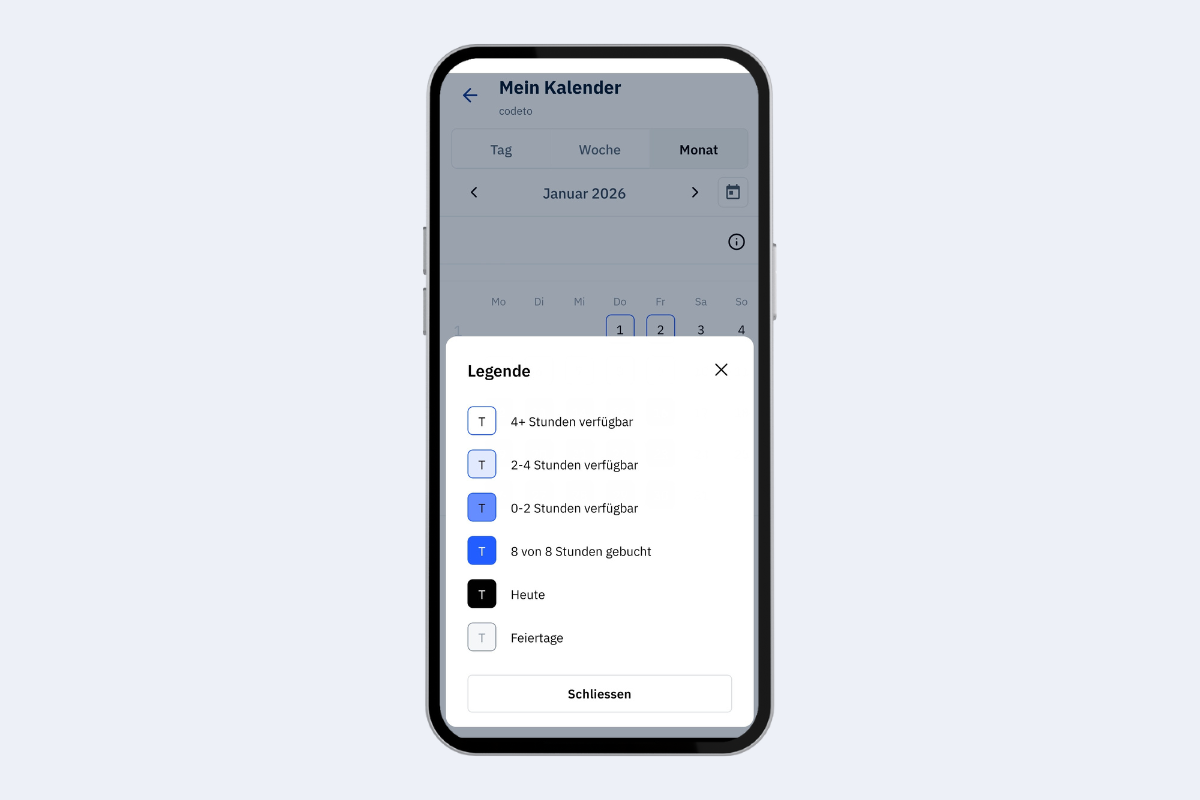
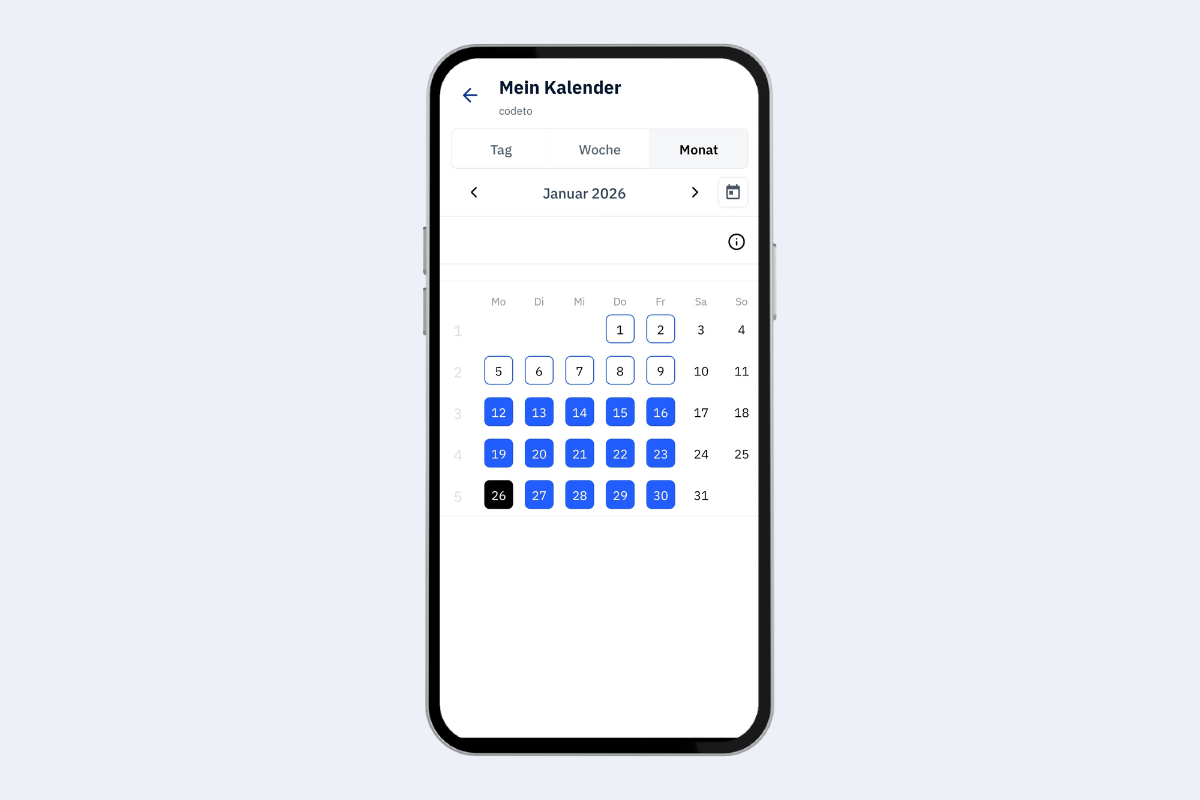
Your personal calendar shows your assignments, equipment, and absences. There are three views: day, week, and month. The day view shows many details, the month view gives a rough overview. The default is the week view.
Timeline
- At the top you see the timeline and can move forwards or backwards.
- The calendar icon always jumps back to Today.
- Tap the date or calendar week to open a calendar popup and pick a specific date or week.
Week view (default)
- Monday to Friday are listed one below the other.
- Bookings per day are outlined in red; the expand icon is also red.
- Use the expand icon to show more info (e.g., notes or a link to project details).
- When you tap a tile, the day view opens with more details.
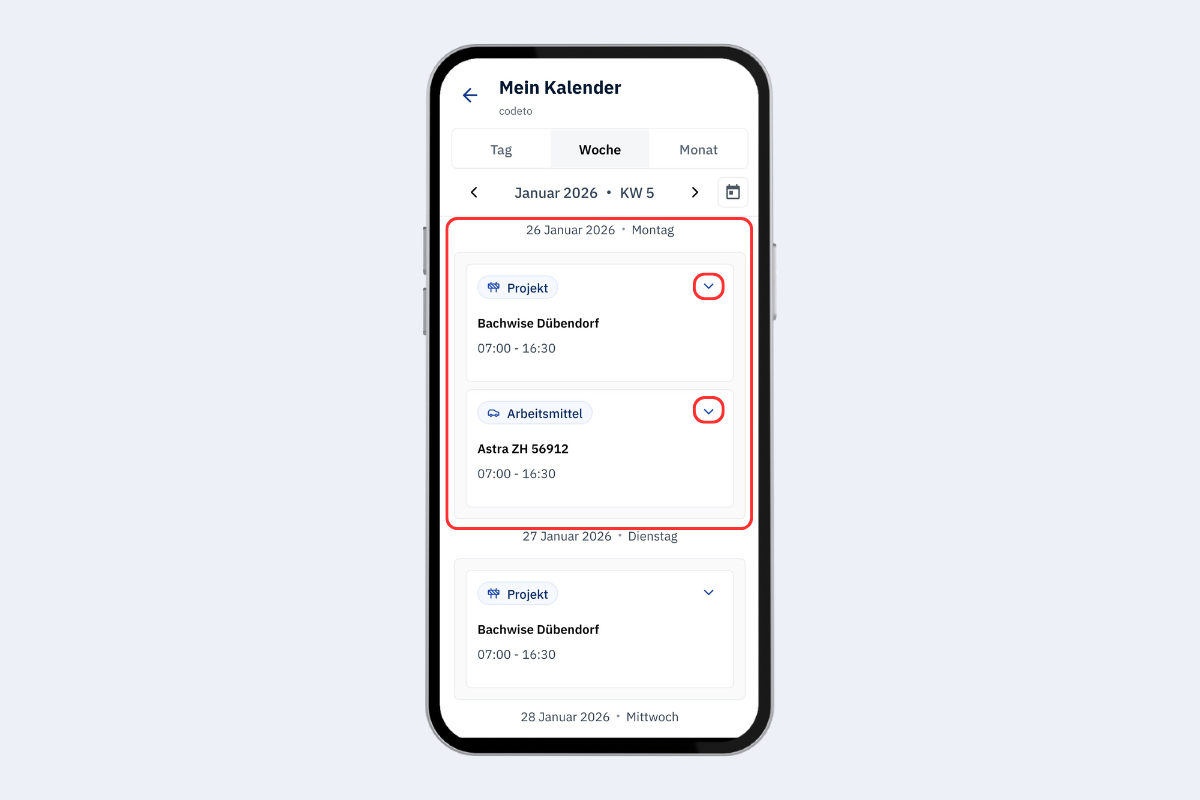
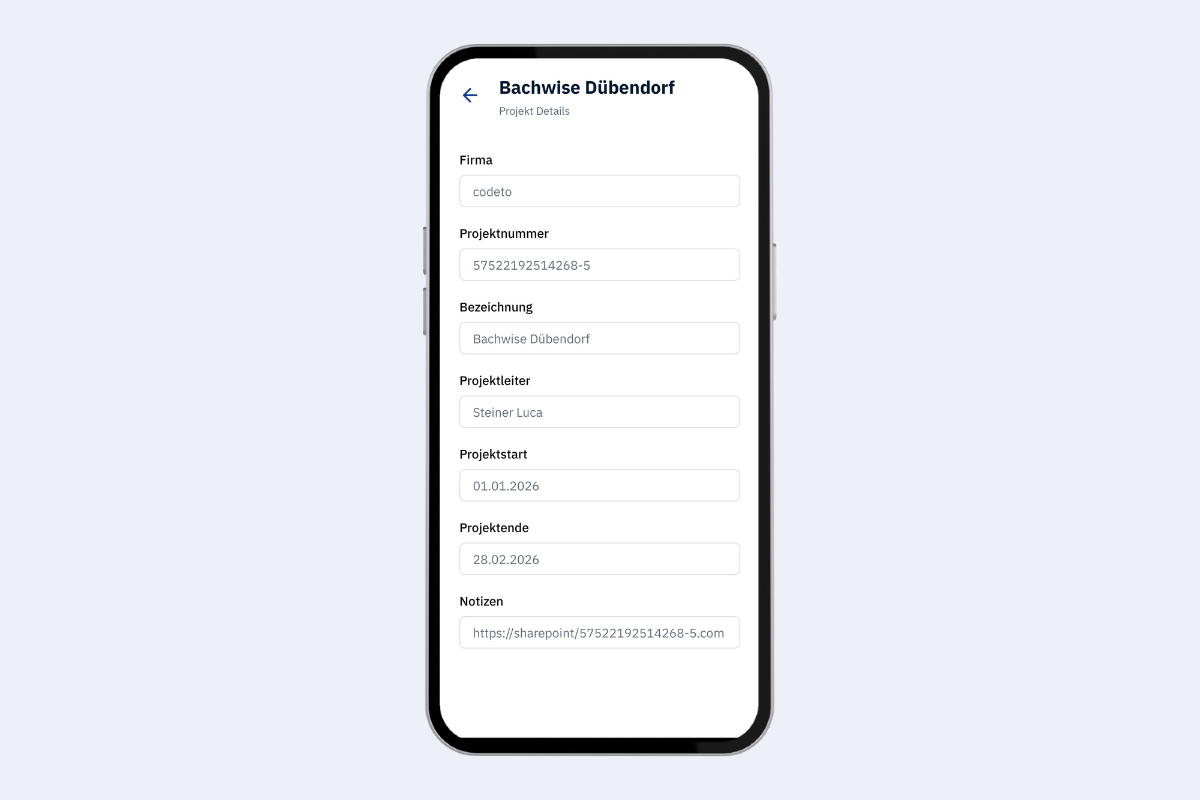
If you expand an entry, you see more info such as notes and a direct link to project details:
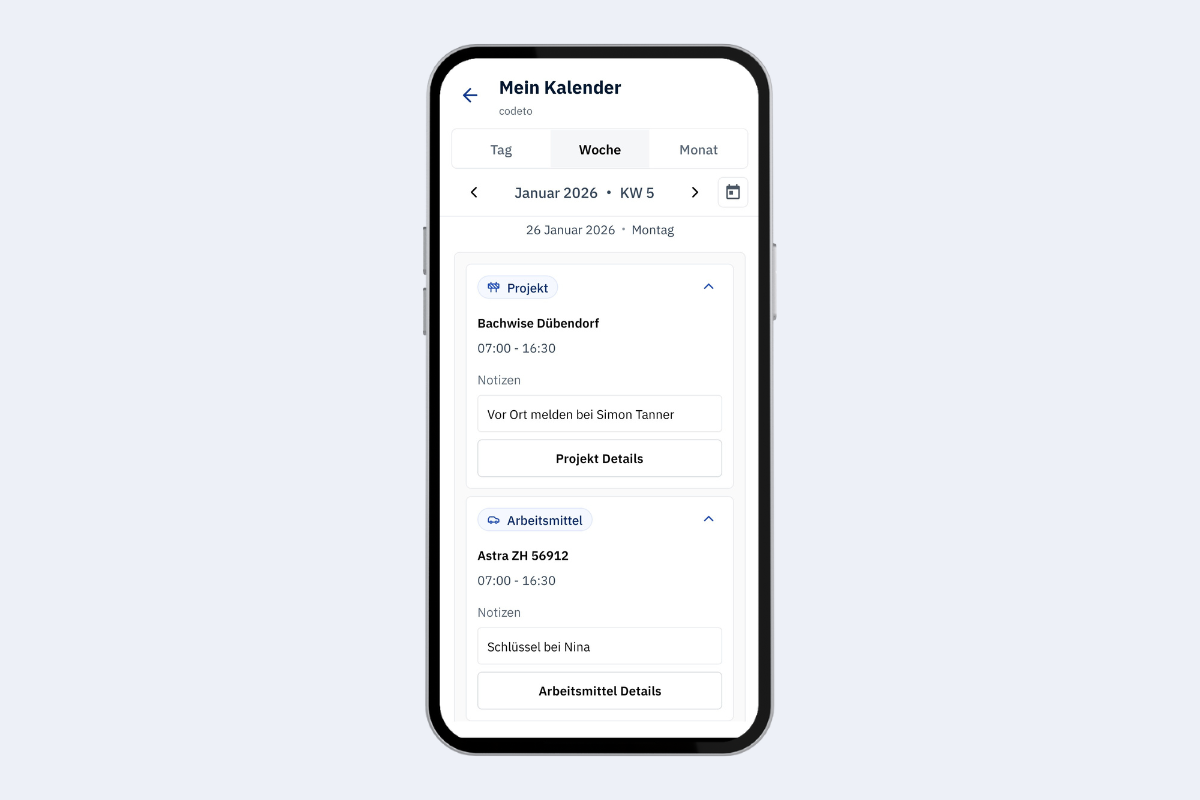
Selecting Project details shows additional information such as start and end date, project lead, and notes:
Day view
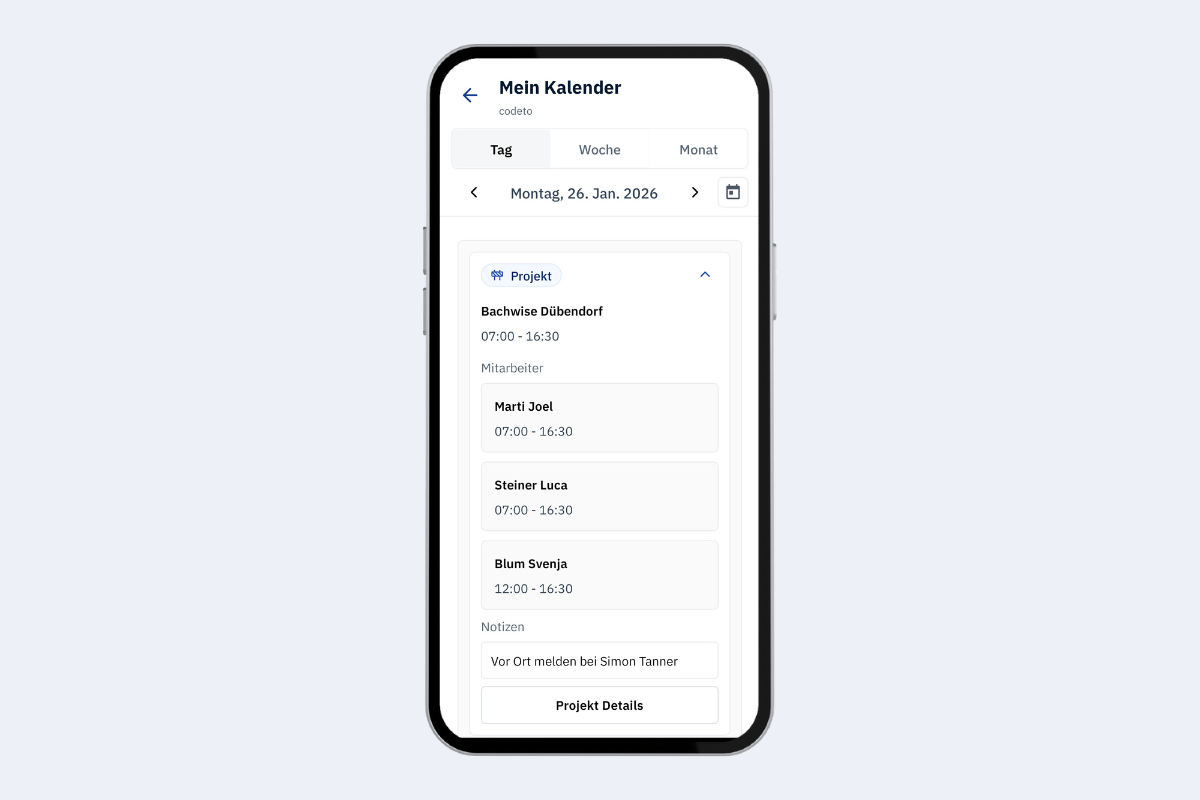
In the day view you also see who else is booked on the same project for that day.
Month view
The month view gives a rough overview of availability in the month. This view will change again by the end of February 2026.